Git Cherry-Pick Explained: How to Apply Specific Commits
96 people viewed this
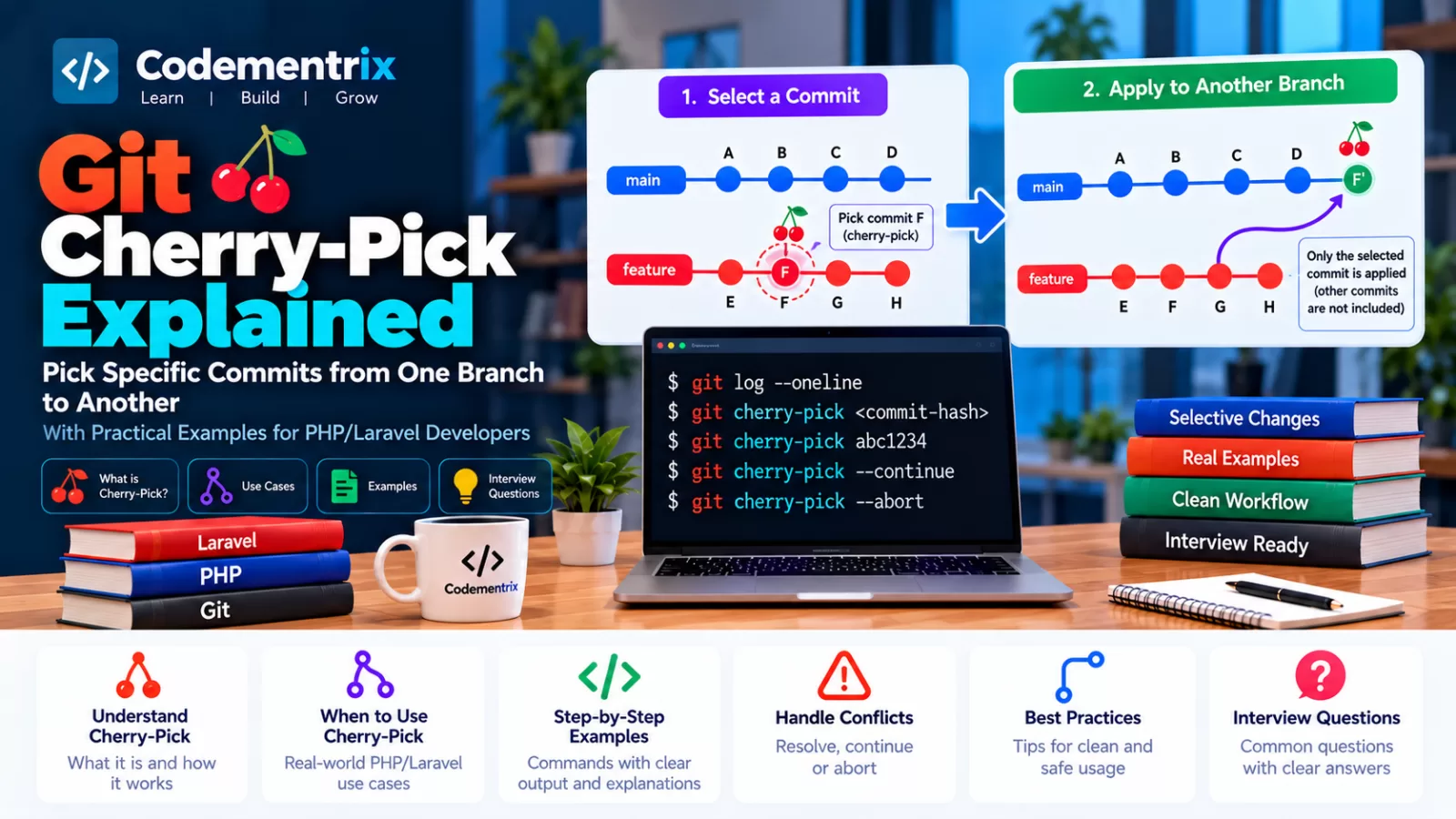
Git Cherry-Pick Explained: How to Apply Specific Commits from One Branch to Another
Imagine you are working on a Laravel project with two branches:
main
feature/payment
A developer has fixed an important payment bug on the feature/payment branch.
You need only that bug fix on main.
But you don't want to merge the entire feature branch because it contains unfinished payment functionality.
What can you do?
This is where Git Cherry-Pick is useful.
feature/payment

A---B---C---D
        ↑
     Bug Fix


main

A---B---E---F
You can take only commit C and apply its changes to another branch:
git cherry-pick <commit-hash>
The result is a new commit on the target branch containing the changes from the selected commit.
Table of Contents
- What is Git Cherry-Pick?
- Why use cherry-pick?
- Basic cherry-pick command
- Simple branch example
- How to find a commit hash
- Laravel cherry-pick example
- Cherry-pick multiple commits
- Cherry-pick a range of commits
- Cherry-pick with edit
- Cherry-pick without creating a commit
- Handling cherry-pick conflicts
- git cherry-pick --continue
- git cherry-pick --abort
- git cherry-pick --skip
- Cherry-picking a merge commit
- Does cherry-pick duplicate commits?
- Cherry-pick vs merge
- Cherry-pick vs rebase
- Cherry-pick with Bitbucket
- Real-world hotfix workflow
- Best practices
- Common mistakes
- Git interview questions
- Command cheat sheet
- Conclusion
1. What is Git Cherry-Pick?
Git Cherry-Pick allows you to take the changes introduced by a specific commit and apply those changes to your current branch.
The basic command is:
git cherry-pick <commit-hash>
Suppose the repository contains:
main

A---B---C


feature/payment

A---B---D---E
Suppose commit D contains an important bug fix.
You switch to main:
git switch main
Then run:
git cherry-pick D
Git applies the changes introduced by D to main and creates a new commit.
main

A---B---C---D'
Notice that the new commit is not literally the same commit object as D. It is a new commit containing the selected changes.
2. Why Use Git Cherry-Pick?
Cherry-pick is useful when you need a specific change but don't want the other changes from the source branch.
Common use cases
- Move a specific bug fix to another branch.
- Apply a production hotfix to multiple branches.
- Move one small feature without merging a whole feature branch.
- Backport a fix to an older release branch.
- Apply a security-related fix to selected release branches.
- Recover a useful commit from another branch.
Example
feature/payment
      |
      +--- Payment UI
      +--- Payment API
      +--- Payment bug fix
      +--- New dashboard
Suppose only the payment bug fix is needed in release/1.5.
Instead of merging the entire feature branch:
git merge feature/payment
you can select only the required commit:
git cherry-pick <bug-fix-commit>
3. Basic Git Cherry-Pick Command
The basic syntax is:
git cherry-pick <commit-hash>
For example:
git cherry-pick a82d921
Git takes the changes introduced by commit a82d921 and attempts to apply them to the current branch.
Important
Cherry-pick works on the branch you are currently on.
So always check:
git branch --show-current
before cherry-picking.
4. Simple Cherry-Pick Example
Suppose you have:
main:

A---B---C


feature/login:

A---B---D---E
Commit D contains a login validation fix.
First switch to the target branch:
git switch main
Then:
git cherry-pick D
The history becomes:
main:

A---B---C---D'
The changes from D are now present in main, but commits after D on the feature branch are not automatically included.
5. How to Find the Commit Hash
Before cherry-picking, you need the commit ID.
Use:
git log --oneline
Example:
a82d921 Fix payment validation
b91c441 Add payment service
c72d123 Add payment controller
Now cherry-pick:
git cherry-pick a82d921
You can usually use the short hash if Git can uniquely identify the commit.
Useful command
git log --oneline --graph --all
This is especially useful when you want to understand where a commit exists relative to different branches.
6. Laravel Cherry-Pick Example
Suppose your Laravel project has:
main
develop
feature/payment
A developer finds a serious bug in:
app/Services/PaymentService.php
They fix it and commit:
git add app/Services/PaymentService.php

git commit -m "Fix payment calculation bug"
The commit hash is:
f72ab91
The fix is currently on feature/payment.
The production branch is:
release/2.0
You don't want to merge all of feature/payment because it contains unfinished functionality.
Switch to the release branch:
git switch release/2.0
Then:
git cherry-pick f72ab91
Now the payment bug fix is applied to the release branch.
Run your tests:
php artisan test
Then push the branch according to your team's workflow:
git push origin release/2.0
7. Cherry-Pick Multiple Commits
You can cherry-pick multiple individual commits:
git cherry-pick abc1234 def5678
Git applies the commits in the order specified.
For example:
git cherry-pick a82d921 b91c441 c72d123
This is useful when you know exactly which commits are required.
8. Cherry-Pick a Range of Commits
You can also cherry-pick a range.
For example:
git cherry-pick A^..C
This includes commits from A through C.
For example:
A---B---C---D
To cherry-pick B, C, and D:
git cherry-pick B^..D
The ^ is important because it makes the range include the first commit you specify.
Another approach
If the commits are a straightforward contiguous sequence, you can specify a range:
git cherry-pick start_commit^..end_commit
Always inspect the commit range before applying it to an important branch.
9. Cherry-Pick with Edit
Normally, cherry-pick creates a commit using the original commit message.
If you want to edit the commit message before completing the cherry-pick:
git cherry-pick --edit <commit-hash>
This is useful when the original commit message does not fit the target branch's context.
10. Cherry-Pick Without Creating a Commit
Sometimes you want the changes from a commit but do not want Git to create the commit immediately.
Use:
git cherry-pick --no-commit <commit-hash>
Short form:
git cherry-pick -n <commit-hash>
This applies the changes to your working tree and staging area without creating the cherry-pick commit.
You can then inspect or modify the changes:
git status

git diff --cached
After that, create your own commit:
git commit -m "Apply selected payment fix"
When is this useful?
- You want to combine changes from several commits.
- You need to modify the selected change before committing.
- You want your own commit message.
- You need more control over the final commit.
11. What Happens When Cherry-Pick Causes a Conflict?
Cherry-pick can produce conflicts when the selected commit changes code that has changed differently on the target branch.
For example:
feature/payment

PaymentService.php
      ↓
Fix payment calculation


main

PaymentService.php
      ↓
Different payment calculation
When Git tries:
git cherry-pick <commit>
it may not know how to combine the two versions.
Git pauses the cherry-pick.
Run:
git status
You may see:
You are currently cherry-picking a commit.

Unmerged paths:
    both modified:
        app/Services/PaymentService.php
12. How to Resolve a Cherry-Pick Conflict
The process is similar to resolving a merge conflict.
Step 1: Check status
git status
Step 2: Open the conflicted file
app/Services/PaymentService.php
Step 3: Find conflict markers
<<<<<<< HEAD
Current branch code
=======
Cherry-picked commit code
>>>>>>> f72ab91
Step 4: Decide the correct final code
Do not blindly choose one side. Understand what the original commit was trying to fix and how the target branch has changed.
Step 5: Remove conflict markers
The final PHP code must not contain:
<<<<<<<
=======
>>>>>>>
Step 6: Test the code
php artisan test
Step 7: Stage the resolved file
git add app/Services/PaymentService.php
Step 8: Continue cherry-pick
git cherry-pick --continue
Git will then complete the cherry-pick if all required conflicts are resolved.
13. How to Abort a Cherry-Pick
If you decide that the selected commit should not be applied, you can abort the operation:
git cherry-pick --abort
This tells Git to stop the cherry-pick operation and attempt to restore the repository to the state it had before the cherry-pick began.
Example
git cherry-pick f72ab91

# Conflict occurs

git status

# Decide not to continue

git cherry-pick --abort
After aborting, verify:
git status
14. How to Skip a Cherry-Pick Commit
During a sequence of cherry-picked commits, you may decide that one commit is not needed.
If Git is currently paused during a cherry-pick operation, you can use:
git cherry-pick --skip
This skips the current cherry-pick and continues the sequence.
Use this only when you understand why that particular commit is unnecessary.
15. Cherry-Picking a Merge Commit
A merge commit has more than one parent.
For example:
        C---D
       /     \
A---B---------M
Commit M is a merge commit.
If you try:
git cherry-pick M
Git may require you to specify the mainline parent.
For example:
git cherry-pick -m 1 M
The -m option specifies which parent should be treated as the mainline when calculating the changes introduced by the merge commit.
This is an advanced operation and should be used only after understanding the merge history.
16. Does Cherry-Pick Duplicate a Commit?
Cherry-pick applies the changes from an existing commit and creates a new commit on the target branch.
For example:
Source branch:

A---B---C
        ↑
      Fix


Target branch:

A---D
After:
git cherry-pick C
the target branch becomes conceptually:
A---D---C'
C' contains the changes introduced by C, but it is a new commit with a different commit identity.
Therefore, cherry-picking the same logical change into multiple branches can result in multiple distinct commits representing that change.
17. Git Cherry-Pick vs Git Merge
``` ```
| Cherry-Pick | Merge |
|---|---|
| Applies selected commit changes | Combines branch histories |
| Selective | Usually integrates a branch's changes |
| Creates new commit(s) | May create a merge commit depending on strategy/history |
| Useful for individual fixes | Useful for integrating branches |
| Can create duplicated logical changes across branches | Preserves the relationship between the branches |
Example
If you want the entire feature:
git merge feature/payment
If you only want one fix:
git cherry-pick <fix-commit>
18. Git Cherry-Pick vs Git Rebase
Cherry-pick and rebase both apply commits in ways that can change how changes appear in history, but they solve different problems.
Cherry-Pick
You select particular commits and apply them to the current branch.
git cherry-pick <commit>
Rebase
You move or replay a branch's commits onto another base.
git rebase main
Simple way to remember:
Need a specific commit?
        ↓
   Cherry-Pick


Need to move/replay a branch?
        ↓
      Rebase
19. Git Cherry-Pick with Bitbucket
Cherry-pick itself is a Git operation. Bitbucket hosts the remote repository and provides collaboration features around the Git repository.
A typical workflow can look like:
1. Developer fixes a bug

2. Commit is pushed to Bitbucket

3. Identify the commit hash

4. Switch to target branch

5. Cherry-pick the commit

6. Run tests

7. Push target branch

8. Create/update Pull Request if required
Example
Suppose:
feature/payment
contains:
f72ab91 Fix payment calculation
The commit has been pushed to Bitbucket.
On your local repository:
git fetch origin
Switch to the target branch:
git switch release/2.0
Cherry-pick:
git cherry-pick f72ab91
Test:
php artisan test
Then push:
git push origin release/2.0
Your team's Bitbucket Pull Request and review process can then be followed as usual.
20. Real-World Hotfix Workflow
One of the most useful applications of cherry-pick is moving a hotfix across branches.
Situation
Suppose your application has:
main
develop
release/2.0
feature/payment
A production bug is fixed on main:
git commit -m "Fix invoice total calculation"
You now need the same fix in release/2.0.
First identify the commit:
git log --oneline main
Suppose:
a72bc31 Fix invoice total calculation
Switch to the release branch:
git switch release/2.0
Then:
git cherry-pick a72bc31
Run tests:
php artisan test
Push:
git push origin release/2.0
Now the selected fix exists on both branches.
21. Cherry-Pick a Bug Fix Without Taking an Entire Feature
This is one of the most important real-world examples.
Suppose:
feature/new-payment

A---B---C---D---E
        ↑
       bug fix
Commits D and E contain unfinished payment features.
But C contains a critical bug fix.
You don't want:
git merge feature/new-payment
because that could integrate more work than intended.
Instead:
git cherry-pick C
This is a classic reason to use cherry-pick.
22. Git Cherry-Pick Best Practices
1. Understand the commit before cherry-picking
Inspect:
git show <commit-hash>
This lets you see what the commit actually changes.
2. Verify the target branch
git branch --show-current
Make sure you are on the branch where you actually want the changes.
3. Make sure your working tree is clean
git status
A clean working tree generally makes cherry-pick easier to reason about.
4. Fetch remote information when needed
git fetch origin
This updates your remote-tracking references without changing your working branch.
5. Test after cherry-picking
php artisan test
Especially test the functionality affected by the selected commit.
6. Don't cherry-pick everything unnecessarily
If you actually need an entire branch, a normal merge or another branch integration strategy may be more appropriate.
7. Document why a commit was cherry-picked
In a team environment, a Pull Request or commit message can explain why a specific fix was moved to another branch.
23. Common Git Cherry-Pick Mistakes
Mistake 1: Cherry-picking the wrong commit
Always inspect:
git show <commit>
before applying an unfamiliar commit.
Mistake 2: Being on the wrong branch
Always check:
git branch --show-current
before running cherry-pick.
Mistake 3: Cherry-picking a dependent commit
Suppose:
Commit A
Add PaymentService

Commit B
Use PaymentService in Controller
If you cherry-pick only B, the target branch may not contain the code introduced by A.
You may need to cherry-pick both:
git cherry-pick A B
or use another integration strategy.
Mistake 4: Ignoring conflicts
If Git stops:
git status
Understand and resolve the conflict before continuing.
Mistake 5: Forgetting to test
A successful cherry-pick does not guarantee that the application behavior is correct.
For Laravel:
php artisan test
Mistake 6: Cherry-picking large feature chains unnecessarily
Cherry-pick is most useful when you need selected changes. If an entire branch is required, consider whether merging or rebasing better matches the team's workflow.
24. Git Cherry-Pick Interview Questions
Q1. What is Git Cherry-Pick?
Git cherry-pick applies the changes introduced by a specific commit to the current branch and normally creates a new commit.
Q2. Why would you use cherry-pick?
When you need a specific commit from another branch but do not want to merge the entire branch.
Q3. What is the basic cherry-pick command?
git cherry-pick <commit-hash>
Q4. Does cherry-pick copy the exact same commit?
No. It applies the changes introduced by the source commit and creates a new commit on the target branch.
Q5. How do you cherry-pick multiple commits?
git cherry-pick commit1 commit2 commit3
Q6. How do you cherry-pick a range?
git cherry-pick A^..D
This includes the commits from A through D.
Q7. How do you cherry-pick without creating a commit?
git cherry-pick --no-commit <commit>
or:
git cherry-pick -n <commit>
Q8. What happens if cherry-pick causes a conflict?
Git pauses the operation and asks you to resolve the conflict.
After resolving:
git add <resolved-file>

git cherry-pick --continue
Q9. How do you abort cherry-pick?
git cherry-pick --abort
Q10. How do you skip a cherry-picked commit?
git cherry-pick --skip
Q11. What is the difference between cherry-pick and merge?
Cherry-pick selects individual commits and applies their changes, while merge integrates the histories of branches.
Q12. What is the difference between cherry-pick and rebase?
Cherry-pick selectively applies chosen commits to the current branch. Rebase replays a branch's commits onto another base.
Q13. How do you inspect a commit before cherry-picking it?
git show <commit-hash>
Q14. Can you cherry-pick a merge commit?
Yes, but you normally need to specify the mainline parent:
git cherry-pick -m 1 <merge-commit>
Q15. Can cherry-pick create conflicts?
Yes. Conflicts can occur when the selected commit changes code that has diverged on the target branch.
Q16. What should you do before cherry-picking?
A practical workflow is:
git status

git branch --show-current

git show <commit-hash>
Then cherry-pick the commit and test the result.
Q17. Can cherry-pick be used for production hotfixes?
Yes. A common workflow is to cherry-pick a tested bug-fix commit from one branch into a release or maintenance branch when the complete source branch should not be merged.
25. Git Cherry-Pick Cheat Sheet
``` ```
| Command | Purpose |
|---|---|
git cherry-pick <commit> |
Apply one commit |
git cherry-pick A B C |
Apply multiple commits |
git cherry-pick A^..D |
Apply a range of commits |
git cherry-pick --no-commit <commit> |
Apply changes without creating a commit |
git cherry-pick --edit <commit> |
Edit the commit message |
git cherry-pick --continue |
Continue after resolving conflicts |
git cherry-pick --abort |
Cancel the cherry-pick operation |
git cherry-pick --skip |
Skip the current commit in a sequence |
git cherry-pick -m 1 <merge-commit> |
Cherry-pick a merge commit using parent 1 as mainline |
git show <commit> |
Inspect a commit before applying it |
git log --oneline |
Find commit hashes |
git status |
Check cherry-pick state and conflicts |
26. Complete Laravel Cherry-Pick Workflow
Here is a workflow worth remembering for interviews and real projects.
# 1. Update remote information

git fetch origin


# 2. Check current branch

git branch --show-current


# 3. Inspect the commit

git show <commit-hash>


# 4. Switch to target branch

git switch release/2.0


# 5. Check working tree

git status


# 6. Cherry-pick the fix

git cherry-pick <commit-hash>


# 7. If no conflict, test

php artisan test


# 8. If conflict occurs

git status


# Resolve files


git add <resolved-file>


# Continue

git cherry-pick --continue


# 9. Push

git push origin release/2.0
27. Easy Way to Remember Cherry-Pick
Source Branch
      |
      |  Select ONE useful commit
      ↓
   Commit F
      |
      | cherry-pick
      ↓
Target Branch
      |
      ↓
New Commit F'
The easiest way to remember the concept is:
Cherry-pick means: "I don't need the whole branch. I only need this specific commit."
28. Conclusion
Git Cherry-Pick is a powerful Git command that allows developers to selectively apply a specific commit from one branch to another.
It is especially useful for:
- Production hotfixes
- Backporting bug fixes
- Moving individual changes between release branches
- Selectively applying completed work
- Avoiding the integration of an entire unfinished feature branch
The most important commands to remember are:
git cherry-pick <commit>

git cherry-pick --no-commit <commit>

git cherry-pick --continue

git cherry-pick --abort

git cherry-pick --skip

git cherry-pick -m 1 <merge-commit>
For Laravel developers, always inspect the selected commit before applying it:
git show <commit>
After cherry-picking, test the application:
php artisan test
And if a conflict occurs, don't blindly choose one side. Understand the purpose of the original commit, compare it with the target branch, resolve the code correctly, and then continue the cherry-pick.
What's Next?
The next article in the Codementrix Git series can cover:
Git Remote, Fetch, Pull and Push Explained
We will cover:
git remotegit fetchgit pullgit pushorigin- Remote-tracking branches
- Upstream branches
- Bitbucket workflows
- Pull vs fetch differences
- Common Git interview questions
Was this useful?
No ratings yet — yours can be the first.
Discussion
Notes from readers. Comments appear after a short review.
No comments yet. Start the thread below.