Git Pull vs Fetch: Difference, Examples & When to Use
6 people viewed this
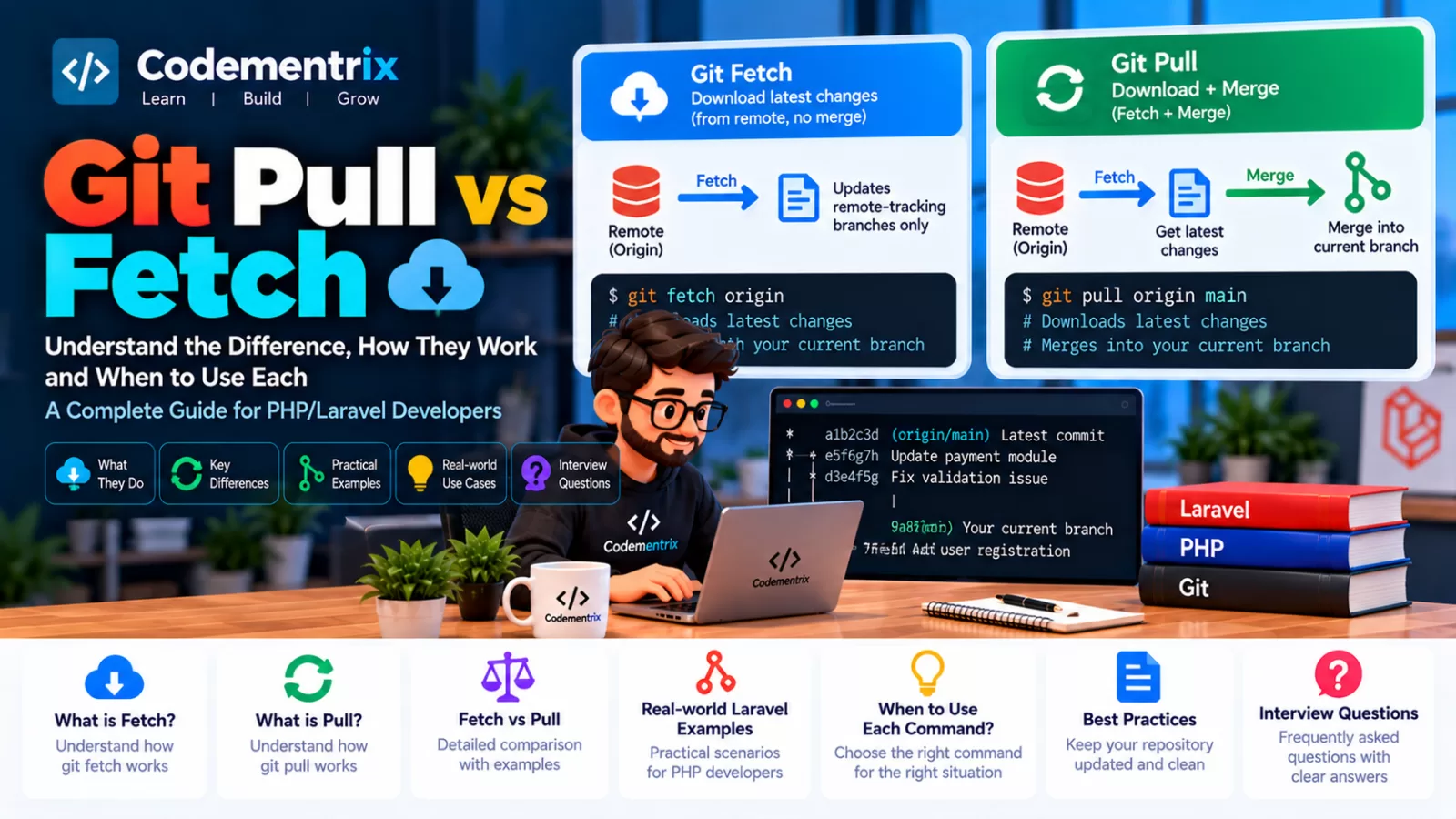
Git Pull vs Fetch — What's the Difference and When to Use Each?
When working with Git and Bitbucket, you will frequently hear two commands:
git fetch
git pull
Both commands get information from a remote repository, but they do not behave the same way.
The biggest difference is:
git fetch downloads remote changes without changing your current branch, while git pull downloads remote changes and then integrates them into your current branch.
In this article, we will understand git fetch and git pull with practical PHP/Laravel and Bitbucket examples.
1. What Is a Remote Repository?
A remote repository is a Git repository hosted somewhere outside your local machine.
For example:
- Bitbucket
- GitHub
- GitLab
Suppose your Laravel project is stored in Bitbucket.
Local Repository
       ↕
   Bitbucket
   Remote Repository
The commonly used remote name is:
originYou can check your configured remotes with:
git remote -vExample:
origin  git@bitbucket.org:company/pharmacy-erp.git (fetch)
origin  git@bitbucket.org:company/pharmacy-erp.git (push)
2. What Is git fetch?
git fetch downloads the latest information from a remote repository without integrating those changes into your current local branch.
The basic command is:
git fetchOr:
git fetch originAfter fetching, Git updates your remote-tracking references such as:
origin/main
origin/develop
origin/feature/payment
Your current branch does not automatically change.
3. Simple Example of git fetch
Suppose your local branch is:
mainYour local history:
A → B → C
        ↑
      main
Meanwhile, another developer pushes a new commit to Bitbucket:
A → B → C → D
              ↑
          origin/main
Your local main still points to C.
Now run:
git fetch originGit downloads information about D and updates:
A → B → C → D
        ↑   ↑
       main origin/main
Your local main is still at C.
That is the key behavior of git fetch.
4. What Is a Remote-Tracking Branch?
When you run:
git fetch originGit updates references such as:
origin/main
origin/develop
These are called remote-tracking branches.
They represent the last known state of those branches on the remote as recorded by your local repository.
For example:
main        → your local branch
origin/main → your local record of the remote main branch
5. What Is git pull?
git pull gets changes from a remote repository and integrates them into your current branch.
For example:
git pull origin mainConceptually, a normal pull is roughly:
git fetch
+
integration step
The integration step may be a merge or, depending on configuration/options, a rebase or fast-forward update.
So don't think of git pull as simply another name for git fetch.
6. Simple Example of git pull
Suppose:
Local main:
A → B → C

Remote main:
A → B → C → D
Run:
git pull origin mainGit retrieves the remote changes and integrates them into your current branch.
If the update can be fast-forwarded, the result may simply become:
A → B → C → D
              ↑
             main
7. Fetch vs Pull — The Main Difference
| git fetch | git pull |
|---|---|
| Downloads remote updates | Downloads remote updates |
| Does not integrate into current branch | Integrates changes into current branch |
| Safer for inspecting remote changes first | Convenient when you want to update your current branch |
| Updates remote-tracking references | Fetches and then integrates |
| Does not normally create a merge commit by itself | May merge, rebase, or fast-forward depending on configuration/options |
8. Easy Way to Remember
git fetch
    ↓
"Show me what's new on the remote."

git pull
    ↓
"Get what's new and integrate it into my current branch."
This is the simplest way to remember the difference.
9. Why Use git fetch?
Fetching is useful when you want to inspect remote changes before integrating them.
For example:
git fetch origingit log HEAD..origin/main --oneline
This can show commits that are on the remote-tracking branch but not currently in your local branch.
You can then inspect the differences:
git diff HEAD..origin/mainOnly after understanding the changes can you decide how to integrate them.
10. Practical Laravel Example — Checking a Teammate's Changes
Suppose you are working on a Laravel application.
Your teammate has pushed changes to:
developYou don't want those changes immediately merged into your local branch.
Run:
git fetch originNow inspect the remote branch:
git log --oneline HEAD..origin/developYou can also inspect file differences:
git diff HEAD..origin/developIf everything looks correct, you can integrate the changes using your team's preferred workflow.
11. Practical Laravel Example — Update Your Local Branch
Suppose you simply want the latest develop changes in your local develop branch.
First switch to the branch:
git switch developThen:
git pull origin developGit fetches the remote changes and integrates them according to the pull configuration.
12. What Happens When You Run git pull?
Conceptually, a normal pull consists of two stages:
git pull
↓
Fetch remote changes
↓
Integrate those changes
↓
Update current branchThe integration behavior depends on the repository configuration and command options.
For example, Git may perform a fast-forward update when possible, or a merge when local and remote histories have diverged.
13. Fast-Forward Pull
Suppose your local branch is behind the remote:
A → B → C
↑
main
A → B → C → D
↑
origin/mainThere are no local commits after C.
A pull can fast-forward:
A → B → C → D
↑
mainNo merge commit is needed.
14. When Local and Remote Branches Have Diverged
Suppose you have:
A → B → C
\
D
↑
local mainand the remote has:
A → B → C → E
↑
origin/mainYour local branch and remote branch have different commits.
A pull now needs an integration strategy. Depending on configuration, this may involve:
- Merge
- Rebase
- Fast-forward when possible
This is one reason many teams prefer explicitly choosing how they integrate remote changes.
15. git pull --rebase
You can tell Git to rebase your local commits on top of the fetched remote changes:
git pull --rebaseConceptually:
Fetch remote changes
↓
Temporarily move local commits
↓
Update local branch
↓
Replay local commits
This can produce a more linear history, but it rewrites the local commits being rebased.
Do not use rebase casually on commits that other developers are already depending on.
16. git pull --ff-only
You can require Git to update only when a fast-forward is possible:
git pull --ff-onlyIf your local branch has diverged from the remote, Git stops instead of creating a merge commit.
This is useful when you want Git to refuse an implicit merge during pull.
17. Fetch First, Then Decide
A cautious workflow is:
git fetch origingit statusgit log HEAD..origin/main --onelinegit diff HEAD..origin/main
After inspecting the changes, choose an integration method appropriate for your team's workflow.
For example, you might use:
git merge origin/mainor:
git rebase origin/mainThe exact choice depends on your branch policy and whether your local commits have been shared.
18. git fetch vs git pull in Bitbucket
Suppose your team uses Bitbucket with:
origin/main
origin/develop
origin/feature/paymentTo see what changed remotely:
git fetch originThen:
git branch -rYou can see remote-tracking branches.
To update your current branch directly:
git pull origin develop19. Fetching a Specific Remote Branch
You can fetch a particular branch:
git fetch origin developThis updates the corresponding remote-tracking reference.
You can inspect it with:
git log origin/develop --oneline20. Fetch All Remote Updates
To fetch updates from all configured remotes:
git fetch --allThis is useful when you have multiple remotes.
However, fetching from all remotes does not automatically merge those changes into your current branch.
21. What Happens to Your Working Files?
This is an important practical difference.
git fetch
Fetching does not update your current working branch with the fetched commits.
git fetch originYour current files normally remain as they were.
git pull
Pull attempts to integrate the remote changes into the current branch, which can change your working tree and may result in conflicts.
22. What If You Have Local Changes?
Suppose you have modified:
app/Services/PaymentService.phpbut haven't committed the change.
Running:
git fetch origincan still be useful because it only updates remote-tracking information.
But running:
git pullmay be unable to integrate the remote changes if they conflict with your local modifications.
A useful workflow is:
git status
git diff
git fetch originThen decide how to handle your local work before integrating the remote changes.
23. What If git pull Produces a Conflict?
Suppose both you and another developer changed the same Laravel controller.
You run:
git pull origin developGit may report a conflict.
For example:
CONFLICT (content): Merge conflict in
app/Http/Controllers/OrderController.phpNow inspect:
git statusOpen the conflicted file and resolve the conflict.
After resolving:
git add app/Http/Controllers/OrderController.phpThen complete the merge according to Git's instructions.
If your team uses a rebase-based pull and a conflict occurs, the continuation command may instead be:
git rebase --continue24. Abort a Pull-Related Merge
If a pull started a merge and you decide not to continue, you can generally abort the merge:
git merge --abortIf the pull was performing a rebase, use:
git rebase --abortWhich command is appropriate depends on the integration strategy Git was using.
25. Fetch vs Pull — Real-World Scenarios
| Scenario | Preferred Starting Point |
|---|---|
| Just check whether remote changed | git fetch |
| Inspect incoming commits | git fetch |
| Review remote changes before integrating | git fetch |
| Update your local branch directly | git pull |
| Simple fast-forward update | git pull --ff-only |
| Team explicitly uses rebase-based pulls | git pull --rebase |
These are workflow choices, not universal rules. Always follow your project's Git policy.
26. Recommended Safe Workflow
When you are unsure what changed on the remote, use:
git fetch origingit statusgit log HEAD..origin/main --onelinegit diff HEAD..origin/main
Now you know what is coming before integrating it.
27. Laravel Team Workflow Example
Imagine three developers are working on a Laravel application:
- Developer A — authentication
- Developer B — pharmacy payments
- Developer C — inventory
Developer B has pushed new payment changes to develop.
You are working locally and want to inspect the changes.
First:
git fetch originCheck the new commits:
git log HEAD..origin/develop --onelineInspect the code changes:
git diff HEAD..origin/developIf everything is appropriate, integrate the changes using your team's approved method.
This gives you more control than blindly pulling changes.
28. git fetch Does Not Merge
This is one of the most important interview points.
Running:
git fetch origindoes not mean:
git merge origin/mainThose are separate operations.
Fetch retrieves the remote information. You decide what to do with it afterward.
29. git pull Is Not Just "Download"
Another common misunderstanding is:
git pull = download filesMore accurately, pull performs remote fetching and then attempts to integrate the fetched changes into the current branch.
So:
git fetch
↓
Download/update remote-tracking information
git pull
↓
Fetch
+
Integrate
30. How to See What Will Be Pulled
Instead of immediately pulling, you can fetch first:
git fetch originThen:
git log HEAD..origin/main --onelineAnd:
git diff HEAD..origin/mainThis gives you visibility into the incoming changes.
31. How to Check Whether Your Branch Is Behind
After fetching:
git statusGit may tell you that your branch is behind the remote-tracking branch.
You can also compare commits directly:
git log HEAD..origin/main --onelineIf this produces commits, there are commits reachable from origin/main that are not in your current HEAD.
32. Fetch + Merge vs Pull
You can explicitly separate the operations:
git fetch origin
git merge origin/mainThis gives you more visibility and control.
Whereas:
git pull origin maincombines the fetching and integration workflow into one command.
The two workflows can produce the same result when the pull's integration strategy matches the explicit merge operation.
33. Fetch + Rebase vs Pull --rebase
Similarly, you can explicitly fetch and then rebase:
git fetch origin
git rebase origin/mainThis is conceptually similar to:
git pull --rebase origin mainAgain, the exact result depends on repository state and configuration.
34. Best Practices for git fetch
- Fetch before inspecting remote changes.
- Use
git logto inspect incoming commits. - Use
git diffto inspect code changes. - Use fetch when you don't want your current branch changed immediately.
- Fetch regularly in active team repositories.
35. Best Practices for git pull
- Know your team's pull strategy.
- Check your local working tree before pulling.
- Commit or safely stash work when necessary.
- Understand whether your project uses merge or rebase.
- Be prepared to resolve conflicts.
- Don't blindly pull into production branches without following the deployment workflow.
36. Common Mistakes
❌ Mistake 1 — Thinking fetch changes your current branch
git fetch originFetch updates remote-tracking information; it does not normally integrate those commits into your current branch.
❌ Mistake 2 — Pulling without checking local changes
git pullCheck first:
git status❌ Mistake 3 — Not understanding pull's integration strategy
A pull can use fast-forward, merge, or rebase behavior depending on configuration and options.
❌ Mistake 4 — Assuming pull is always conflict-free
When local and remote work overlap, conflicts can occur.
❌ Mistake 5 — Rebasing shared commits casually
Rebase rewrites commits. Follow your team's policy before using it on shared history.
37. Fetch vs Pull Cheat Sheet
| Command | Purpose |
|---|---|
git fetch |
Fetch updates from the default remote |
git fetch origin |
Fetch updates from origin |
git fetch --all |
Fetch from all configured remotes |
git pull |
Fetch and integrate into current branch |
git pull --rebase |
Fetch and rebase local commits on top of fetched changes |
git pull --ff-only |
Only update if fast-forward is possible |
git log HEAD..origin/main |
See commits on origin/main not in current HEAD |
git diff HEAD..origin/main |
Compare current HEAD with remote-tracking branch |
38. Interview Questions
Q1. What is the difference between git fetch and git pull?
git fetch downloads remote updates and updates remote-tracking references without integrating them into the current branch. git pull fetches and then integrates the changes into the current branch.
Q2. Does git fetch change my current branch?
Normally, no. It updates remote-tracking references but does not merge or rebase those changes into your current branch.
Q3. What is origin?
origin is the conventional default name Git gives to the remote repository from which a repository was cloned.
Q4. What is origin/main?
origin/main is a remote-tracking reference representing the last fetched state of the remote main branch.
Q5. Is git pull the same as git fetch?
No. Pull includes fetching and then integrating the fetched changes into the current branch.
Q6. Why would you use git fetch instead of git pull?
Fetch is useful when you want to inspect incoming remote changes before deciding how to integrate them.
Q7. What is git pull --rebase?
It fetches remote changes and rebases the local commits on top of the updated remote branch instead of using the normal merge-based integration behavior.
Q8. What does git pull --ff-only do?
It allows the pull only when Git can update the current branch by fast-forwarding it. If the histories have diverged, Git stops instead of performing an implicit merge.
Q9. Can git fetch cause merge conflicts?
Fetching itself does not merge changes into your current branch, so it does not normally produce working-tree merge conflicts. Conflicts arise during a later integration operation such as merge or rebase.
Q10. How do you see what commits are available remotely before pulling?
git fetch origin

git log HEAD..origin/main --oneline39. Easy Way to Remember
FETCH

Remote
   ↓
Your local remote-tracking branch

No integration into current branch


PULL

Remote
   ↓
Fetch
   ↓
Merge / Rebase / Fast-forward
   ↓
Current branch updated
Or simply:
Fetch = Download and inspect.
Pull = Download and integrate.
40. Complete Bitbucket Workflow Example
Suppose your Laravel team works with:
main
develop
feature/payment
You are working on:
feature/paymentBefore updating your branch with the latest development changes, you can first inspect them:
git status

git fetch origin

git log HEAD..origin/develop --oneline

git diff HEAD..origin/develop
If your team wants you to merge the latest development branch into your feature branch:
git merge origin/developOr if the team's workflow calls for rebasing your local feature work:
git rebase origin/developAlternatively, if your workflow is simply to update the current branch from its configured upstream:
git pullThe important point is to understand what operation Git is actually performing instead of treating pull as a magic synchronization command.
Conclusion
Understanding git fetch and git pull is essential for anyone working with Git, especially when multiple developers are working on the same PHP or Laravel project.
The key difference is:
git fetch
    ↓
Get remote information
    ↓
Inspect it
    ↓
Decide what to do


git pull
    ↓
Fetch remote information
    ↓
Integrate it
    ↓
Update current branch
If you want control and visibility, fetch first and inspect. If you want to update your current branch according to your team's configured workflow, pull can be convenient.
For professional Laravel development, knowing when to use each command can prevent unnecessary conflicts and make Bitbucket collaboration much smoother.
What's Next?
Now that we understand fetching and pulling, the next logical Git topic is pushing our local changes back to the remote repository.
Next Article: Git Push Explained — Push Local Changes to Remote
We will cover:
- What is
git push? git push origin main- Push a new branch
- Upstream branches
git push -u- Push rejected errors
- Non-fast-forward errors
- Force push and
--force-with-lease - Bitbucket Pull Request workflow
- Common Git push mistakes
- Git interview questions
Was this useful?
No ratings yet — yours can be the first.
Discussion
Notes from readers. Comments appear after a short review.
No comments yet. Start the thread below.