Git Reset vs Revert vs Restore: Differences, Examples and When to Use Each
55 people viewed this
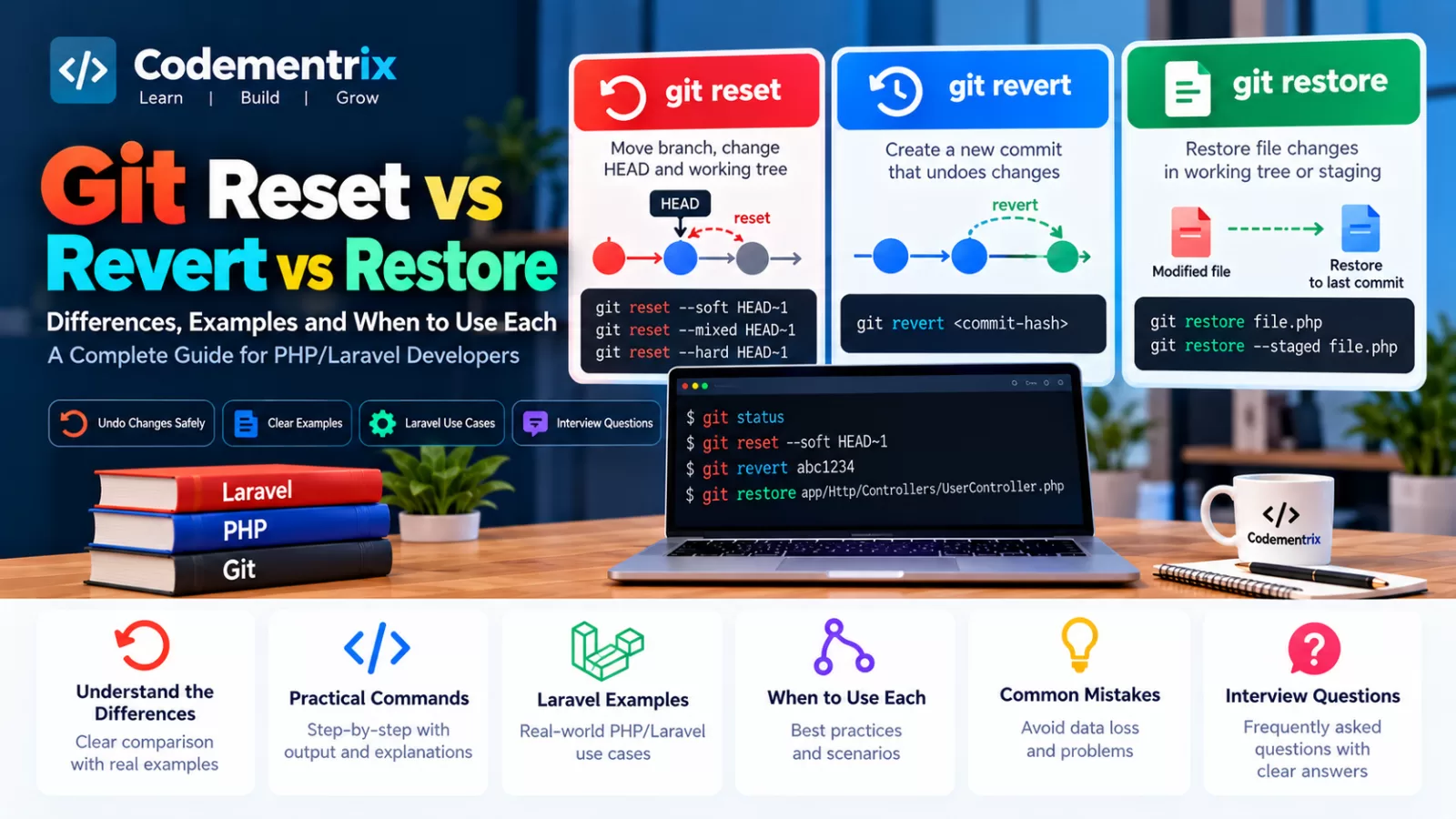
Git Reset vs Revert vs Restore: Differences, Examples and When to Use Each
If you have been working with Git for some time, you have probably seen commands such as:
git reset
git revert
git restore
At first glance, all three commands appear to do the same thing: undo something.
But they are actually used for different purposes.
For example, suppose you accidentally modify a Laravel controller. You may need git restore.
Suppose you committed a change and want to create a new commit that reverses it. You may need git revert.
Suppose you made a few local commits and want to move your branch back to an earlier commit. You may need git reset.
Understanding these differences is extremely important for PHP and Laravel developers because using the wrong command can cause unwanted changes or even discard local work.
In this article, we will understand:
- What Git reset does
- What Git revert does
- What Git restore does
- The difference between reset, revert, and restore
- How HEAD works
- Soft, mixed, and hard reset
- How to undo Laravel code safely
- Real-world PHP/Laravel examples
- Common mistakes
- Git interview questions
Table of Contents
- Reset vs Revert vs Restore at a glance
- Understanding Working Directory, Staging and Repository
- What is HEAD?
- What is git reset?
- git reset --soft
- git reset --mixed
- git reset --hard
- Laravel reset example
- What is git revert?
- Laravel revert example
- What is git restore?
- Restore working-tree changes
- Restore staged changes
- Restore a file from another commit
- Reset vs Revert vs Restore comparison
- Real-world Laravel scenarios
- Common mistakes
- Using reflog after an accidental reset
- Git interview questions
- Command cheat sheet
- Which command should you choose?
- Conclusion
1. Git Reset vs Revert vs Restore at a Glance
The easiest way to understand the three commands is:
``` ```
| Command | Main Purpose | Typical Use |
|---|---|---|
git reset |
Move HEAD/branch and optionally change staging or working tree | Undo local commits or unstage changes |
git revert |
Create a new commit that reverses an earlier commit | Safely undo a shared commit |
git restore |
Restore file contents or staging state | Discard or unstage file changes |
A simple memory trick:
RESET
Move the branch/HEAD.

REVERT
Create a new commit that undoes an old commit.

RESTORE
Restore files or staging state.
2. Understand Git's Three Important Areas
Before understanding reset, revert, and restore, you need to understand the three places where Git manages your work.
1. Working Directory
This is where you actually edit your Laravel files.
For example:
app/Http/Controllers/UserController.php
2. Staging Area
When you run:
git add app/Http/Controllers/UserController.php
the changes are placed in the staging area for the next commit.
3. Repository
When you run:
git commit -m "Update user controller"
the staged changes become part of the repository history.
Simple Diagram
Working Directory
       |
       | git add
       ↓
Staging Area
       |
       | git commit
       ↓
Git Repository
Understanding this flow makes reset and restore much easier to understand.
3. What is HEAD?
HEAD is a reference that tells Git what commit your current working state is based on.
Suppose your history looks like:
A---B---C---D
            ↑
           HEAD
HEAD currently points to commit D.
If you move HEAD back:
A---B---C---D

        ↑
       HEAD
the exact effect on the branch, index, and working tree depends on the Git command and options you use.
You will frequently see:
HEAD~1
which means the commit one generation before HEAD.
Similarly:
HEAD~2
means two commits before HEAD.
4. What is git reset?
git reset moves the current branch's tip to another commit and, depending on the selected mode, changes the staging area and working tree.
It is commonly used to:
- Undo local commits
- Unstage changes
- Move a branch pointer backward
- Modify local commit history
A common example is:
git reset HEAD~1
This moves the current branch back by one commit and, by default, uses the mixed mode.
There are three important reset modes:
--soft
--mixed
--hard
5. What is git reset --soft?
git reset --soft moves HEAD and the branch pointer but keeps your changes staged.
Suppose you have:
A---B---C
        ↑
       HEAD
Run:
git reset --soft HEAD~1
Now:
A---B
    ↑
   HEAD

Changes from C remain staged.
This is useful when you want to undo the last commit but keep all its changes ready for another commit.
Laravel Example
Suppose you accidentally committed:
git add .

git commit -m "Add payment feature"
Then you realize the commit message is poor or you want to add another change to the same commit.
You can use:
git reset --soft HEAD~1
The commit is removed from the current branch history, but the changes remain staged.
Now you can create a better commit:
git commit -m "Add payment processing"
6. What is git reset --mixed?
Mixed is the default reset mode.
git reset HEAD~1
is equivalent to:
git reset --mixed HEAD~1
It moves HEAD and resets the staging area, but it keeps your working-directory changes.
Example
Suppose:
A---B---C
        ↑
       HEAD
Run:
git reset --mixed HEAD~1
Now the branch points to B, but the changes introduced by C remain in your working directory as unstaged changes.
This is useful when you want to undo a commit but continue editing the files before committing again.
Laravel Example
git reset HEAD~1

git status
You may now see your previous commit's changes as modified but unstaged files.
You can modify them and later stage only the files you actually want:
git add app/Services/PaymentService.php

git commit -m "Refactor payment service"
7. What is git reset --hard?
git reset --hard moves HEAD and resets the index and working tree to match the target commit.
Example:
git reset --hard HEAD~1
This can discard local changes that are not part of the target commit.
Therefore, it is one of the most dangerous reset commands if you have uncommitted work you still need.
Example
A---B---C
        ↑
       HEAD
After:
git reset --hard HEAD~1
the branch points to:
A---B
    ↑
   HEAD
and the working tree is updated to match B.
Important Warning
Do not use:
git reset --hard
just because you want to "clean things up."
First make sure you do not need the local changes.
8. Real Laravel Example of Git Reset
Imagine you are developing a Laravel pharmacy application.
You make three commits:
git commit -m "Add medicine model"

git commit -m "Add medicine controller"

git commit -m "Temporary debugging changes"
You realize the last commit should not be part of your local branch.
If you want to remove the commit but keep its changes staged:
git reset --soft HEAD~1
If you want to remove the commit and keep its changes as unstaged files:
git reset --mixed HEAD~1
If you want to remove the commit and discard the corresponding local changes:
git reset --hard HEAD~1
The third option should be used only when you are certain the changes can be discarded.
9. What is git revert?
git revert creates a new commit that reverses the changes introduced by an earlier commit.
This is very different from reset.
Suppose your history is:
A---B---C
        ↑
    bad commit
Run:
git revert C
Git creates a new commit:
A---B---C---R
            ↑
        revert commit
The original commit C remains in history. The new commit R reverses its changes.
Why is this useful?
It is particularly useful when the commit has already been pushed and other developers may have based work on it.
Instead of rewriting shared history, you add a new commit that undoes the previous change.
10. Laravel Example of Git Revert
Suppose you deploy a new payment feature:
commit a82d921
"Add new payment gateway"
The commit has already been pushed to the team's shared repository.
Later, the team discovers that the feature is causing problems and wants to remove its effect while preserving the existing history.
You can use:
git revert a82d921
Git creates a new commit that reverses the changes introduced by a82d921.
The history becomes:
A---B---C---D
        |
        Add payment

A---B---C---D---R
                |
                Revert payment
This approach avoids moving the shared branch backward.
Important
If the commit being reverted is a merge commit, you normally need to tell Git which parent represents the mainline:
git revert -m 1 <merge-commit>
This is an advanced but useful interview topic.
11. What is git restore?
git restore is primarily used to restore files in the working tree or modify their staging state.
It is useful when you want to undo file-level changes without moving your branch history.
Basic example
Suppose you modify:
app/Http/Controllers/UserController.php
but you decide you don't want those local modifications.
You can use:
git restore app/Http/Controllers/UserController.php
This restores the file to the version in the index, which normally corresponds to the currently staged version.
If the file has not been staged, this commonly discards the working-tree changes and restores the file to the last committed version.
12. Restore Working-Tree Changes
Suppose you modify:
routes/web.php
You realize the changes were incorrect.
Check:
git status
Then:
git restore routes/web.php
The working-tree changes are discarded for that file.
Warning: this can destroy uncommitted changes to the file. Make sure you do not need them first.
13. Unstage a File Using git restore
Suppose you run:
git add app/Models/User.php
but you did not want to stage that file.
You can use:
git restore --staged app/Models/User.php
This removes the file from the staging area while leaving the working-tree changes in place.
This is a common practical use of git restore.
Before
Working Tree
    ↓
Modified User.php

Staging Area
    ↓
User.php
After
Working Tree
    ↓
Modified User.php

Staging Area
    ↓
Empty for User.php
The actual file changes remain in your working directory.
14. Restore a File from Another Commit
You can also restore a file from a specific commit.
git restore --source=<commit> app/Services/PaymentService.php
For example:
git restore --source=HEAD~1 app/Services/PaymentService.php
This takes the specified file's content from the chosen commit and places it into your working tree.
You can then inspect the result:
git diff
and decide whether to stage it.
15. Git Reset vs Revert vs Restore
``` ```
| Feature | Reset | Revert | Restore |
|---|---|---|---|
| Moves branch/HEAD? | Yes | No | No |
| Creates a new commit? | No | Yes | No |
| Can change staging area? | Yes | No | Yes |
| Can change working tree? | Yes, depending on mode | Changes it through the new inverse commit | Yes |
| Common use | Undo local history | Undo shared commit safely | Restore file/staging state |
| Rewrites branch history? | Can | No | No |
| Danger level | Depends on mode; hard can discard work | Generally safer for shared history | Can discard file changes |
16. Reset Modes Compared
``` ```
| Command | HEAD | Staging Area | Working Tree |
|---|---|---|---|
git reset --soft HEAD~1 |
Moved | Preserved | Preserved |
git reset --mixed HEAD~1 |
Moved | Reset | Preserved |
git reset --hard HEAD~1 |
Moved | Reset | Reset |
This table is one of the most important things to remember for a Git interview.
17. Real-World Laravel Scenarios
Scenario 1: You committed too early
You committed a Laravel controller but immediately realize you want to add another file to the same commit.
Use:
git reset --soft HEAD~1
Then:
git add .

git commit -m "Add complete user registration"
Scenario 2: You want to undo a local commit but keep the code
Use:
git reset --mixed HEAD~1
Your changes remain in the working directory but are unstaged.
Scenario 3: You want to completely discard the last local commit
If you are absolutely certain that both the commit and its associated local changes can be discarded:
git reset --hard HEAD~1
Be careful with this command.
Scenario 4: A bad commit is already on the shared branch
Use:
git revert <commit-hash>
This creates a new commit that reverses the old commit.
Scenario 5: You accidentally modified a Laravel file
You changed:
app/Services/OrderService.php
but do not want the local changes.
Use:
git restore app/Services/OrderService.php
Scenario 6: You staged the wrong file
You ran:
git add .
but don't want to commit:
resources/views/debug.blade.php
Unstage it:
git restore --staged resources/views/debug.blade.php
The file's working-tree changes remain available for further editing or discarding.
18. Common Git Reset/Revert/Restore Mistakes
Mistake 1: Using reset on a shared branch
Moving a shared branch backward can cause problems for other developers who already pulled the commits.
For a shared commit that needs to be undone, git revert is often the safer approach.
Mistake 2: Using reset --hard without checking changes
This can discard local working-tree changes.
Always inspect:
git status

git diff
before using destructive commands.
Mistake 3: Thinking revert deletes a commit
Revert does not remove the original commit from history. It creates a new commit that reverses its changes.
Mistake 4: Thinking restore changes Git history
Restore is primarily about file content and staging state. It does not move the branch pointer.
Mistake 5: Using restore without checking local changes
For example:
git restore .
can discard working-tree changes in the affected files. Use it carefully.
19. What If You Accidentally Use git reset --hard?
This is a common interview scenario.
Suppose you accidentally run:
git reset --hard HEAD~2
and realize that you moved the branch too far.
One useful recovery tool is:
git reflog
Reflog records movements of references such as HEAD.
You may see:
a82d921 HEAD@{0}: reset: moving to HEAD~2
b91c441 HEAD@{1}: commit: Add payment validation
c72d123 HEAD@{2}: commit: Add payment service
You can inspect the earlier reference and, if appropriate, move the branch back to it.
For example:
git reset --hard b91c441
Recovery depends on the exact situation, so inspect the reflog carefully before performing another reset.
20. Git Reset vs Revert vs Restore Interview Questions
Q1. What is the difference between reset, revert, and restore?
Reset moves the current branch/HEAD and can also change the staging area and working tree depending on the mode.
Revert creates a new commit that reverses an earlier commit.
Restore restores file contents or staging state without moving the branch pointer.
Q2. What is git reset --soft?
It moves HEAD and the branch pointer while keeping the changes staged.
git reset --soft HEAD~1
Q3. What is git reset --mixed?
It is the default reset mode. It moves HEAD and resets the staging area while keeping working-tree changes.
git reset --mixed HEAD~1
Equivalent shorthand:
git reset HEAD~1
Q4. What is git reset --hard?
It moves HEAD and resets the staging area and working tree to match the target commit. It can discard uncommitted changes.
git reset --hard HEAD~1
Q5. When should you use git revert?
Use revert when you want to undo the effect of an existing commit by creating a new commit, especially when the original commit has already been shared.
Q6. Does git revert delete the original commit?
No. The original commit remains in history. Revert creates another commit that reverses its changes.
Q7. When should you use git restore?
Use restore when you want to restore file contents or change whether file changes are staged.
Q8. How do you unstage a file?
git restore --staged file.php
Q9. How do you discard changes to one file?
git restore file.php
Only do this if you are sure you no longer need those working-tree changes.
Q10. What is the difference between git reset HEAD~1 and git revert HEAD?
Reset moves the current branch back and can rewrite local history. Revert creates a new commit that reverses the current commit.
git reset HEAD~1

git revert HEAD
They therefore produce different histories and have different collaboration implications.
Q11. Which is safer on a shared branch: reset or revert?
For undoing an already-shared commit, revert generally avoids rewriting the shared branch history because it adds a new inverse commit.
Q12. What happens to uncommitted changes with reset?
It depends on the reset mode. Soft preserves them staged, mixed preserves them but unstages them, while hard can replace the working tree and discard local changes.
Q13. Can git restore recover an old commit?
It can restore a file's content from another commit using --source, but it does not move the branch pointer.
git restore --source=HEAD~1 path/to/file.php
Q14. What should you do if you accidentally reset too far?
Inspect:
git reflog
Then identify the appropriate earlier HEAD position and recover carefully.
21. Git Reset, Revert and Restore Cheat Sheet
``` ```
| Command | Purpose |
|---|---|
git reset HEAD~1 |
Undo last commit and unstage its changes |
git reset --soft HEAD~1 |
Undo last commit but keep changes staged |
git reset --mixed HEAD~1 |
Undo last commit and keep changes unstaged |
git reset --hard HEAD~1 |
Undo last commit and reset working tree; can discard local changes |
git revert <commit> |
Create a new commit that reverses an earlier commit |
git restore file.php |
Restore a file's working-tree content |
git restore --staged file.php |
Unstage a file |
git restore --source=HEAD~1 file.php |
Restore file content from another commit |
git reflog |
Inspect previous reference positions for recovery |
22. Which Command Should You Choose?
Use this decision guide when you are unsure.
What do I want to undo?

        |
        +---- A local commit?
        |          |
        |          +---- Keep changes staged?
        |          |        → git reset --soft
        |          |
        |          +---- Keep changes but unstage?
        |          |        → git reset --mixed
        |          |
        |          +---- Discard changes too?
        |                   → git reset --hard
        |
        +---- An already-shared commit?
        |          |
        |          +---- git revert
        |
        +---- A file change?
                   |
                   +---- Discard working-tree change
                   |        → git restore
                   |
                   +---- Unstage file
                            → git restore --staged
23. Practical Laravel Workflow
Suppose you are working on a Laravel project and accidentally make a change to a controller.
Case 1: You have not committed
git status

git restore app/Http/Controllers/UserController.php
Case 2: You staged it by mistake
git restore --staged app/Http/Controllers/UserController.php
Case 3: You committed locally but want to redo the commit
git reset --soft HEAD~1
Case 4: You committed locally and want the changes unstaged
git reset --mixed HEAD~1
Case 5: You want to completely discard the local commit and changes
git reset --hard HEAD~1
Case 6: The bad commit has already been pushed
git revert <commit-hash>
This workflow is worth remembering because it covers many real Laravel development situations.
24. Easy Way to Remember
RESET
↓
Move branch / HEAD
↓
Useful for local history


REVERT
↓
Create inverse commit
↓
Useful for shared history


RESTORE
↓
Restore file/staging state
↓
Useful for individual file changes
If you remember these three lines, you already understand the core difference.
25. Conclusion
git reset, git revert, and git restore all help you undo or recover changes, but they operate at different levels.
Git reset is mainly about moving the current branch/HEAD and controlling what happens to the staging area and working tree.
Git revert creates a new commit that reverses an earlier commit, making it especially useful when you need to undo a change that has already been shared.
Git restore is primarily about restoring file content or changing the staging state without moving the branch pointer.
For Laravel developers, the most important commands to understand are:
git reset --soft HEAD~1
git reset --mixed HEAD~1
git reset --hard HEAD~1

git revert <commit-hash>

git restore file.php
git restore --staged file.php

git reflog
Before using a destructive command such as git reset --hard, always verify that you do not need the local changes.
And when dealing with shared history, understand the difference between rewriting history and creating a new inverse commit.
What's Next?
The next article in the Codementrix Git series can cover another practical topic:
Git Stash Explained — Save, Switch, Restore and Manage Uncommitted Changes
It will cover git stash, stash pop, stash apply, stash lists, named stashes, partial stashing, real-world Laravel scenarios, and Git interview questions.
Was this useful?
No ratings yet — yours can be the first.
Discussion
Notes from readers. Comments appear after a short review.
No comments yet. Start the thread below.